The moment a customer leaves a review on one of your connected Google Business locations, Google My Business – Multiple Account pulls it in and creates a Freshservice ticket automatically — with an optional AI-drafted reply — so your team never has to check Google Business Profile separately.
How it works
Review posted on Google
A customer leaves or edits a star rating and comment on any connected location.
Fields mapped & checked
The app maps review fields to your Freshservice ticket fields, filling in anything mandatory.
Ticket created or noted
A new ticket is opened — or a private note is added if it's an edit to an existing review.
Why teams use it
- Never miss a review — every review across your connected locations becomes a ticket automatically.
- One place for every account & location — connect multiple Google Business accounts and pick exactly which locations to poll.
- Reply faster with AI (optional) — hook up an AI provider to draft a warm, on-brand first response before an agent opens the ticket.
Wire up Freshservice, map your fields, then connect the Google Business account(s) and location(s) you want to watch.
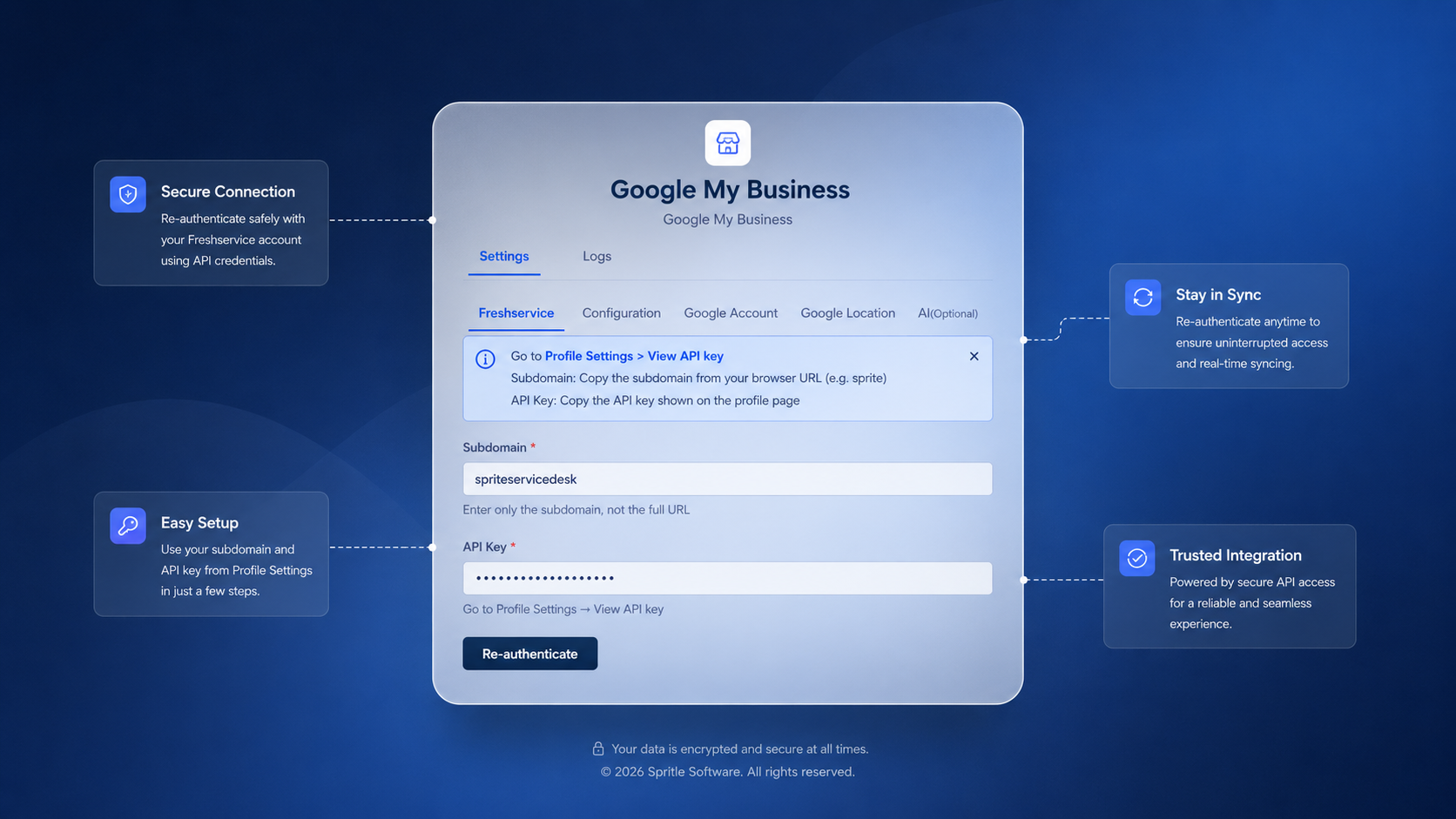
Connect Freshservice
Required- Open the app's Freshservice tab and enter your Freshservice domain and an API key that has permission to create and update tickets.
- Click Save — this connection is required before any other step will have effect.
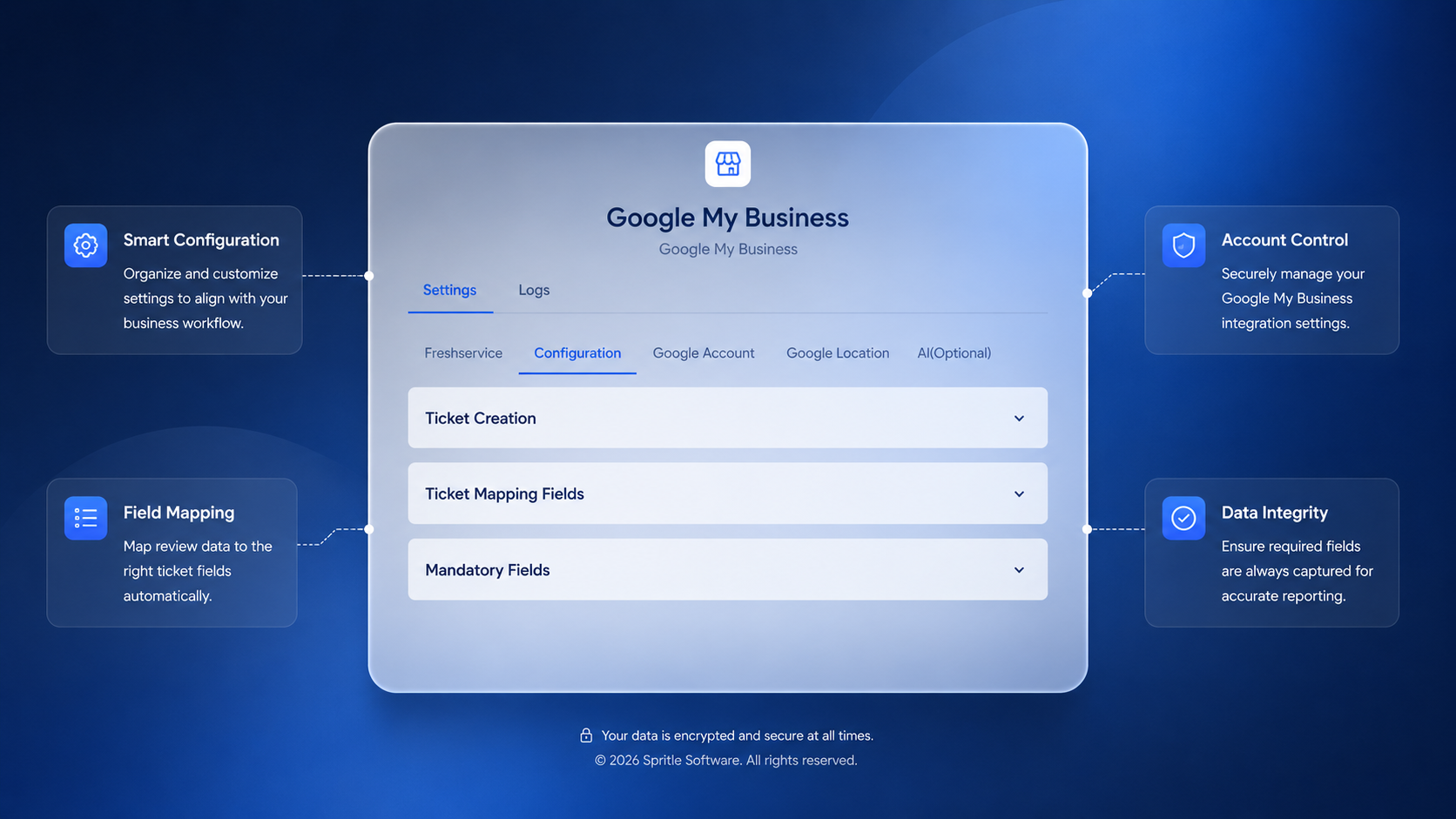
Field & mandatory mapping
Required- On the Field Mapping tab, map each review field (rating, reviewer, body) to the corresponding Freshservice ticket field.
- On the Mandatory Fields tab, set default values for any ticket fields that Freshservice requires — these are used when the review itself doesn't supply a value.
- Save each tab before moving on.
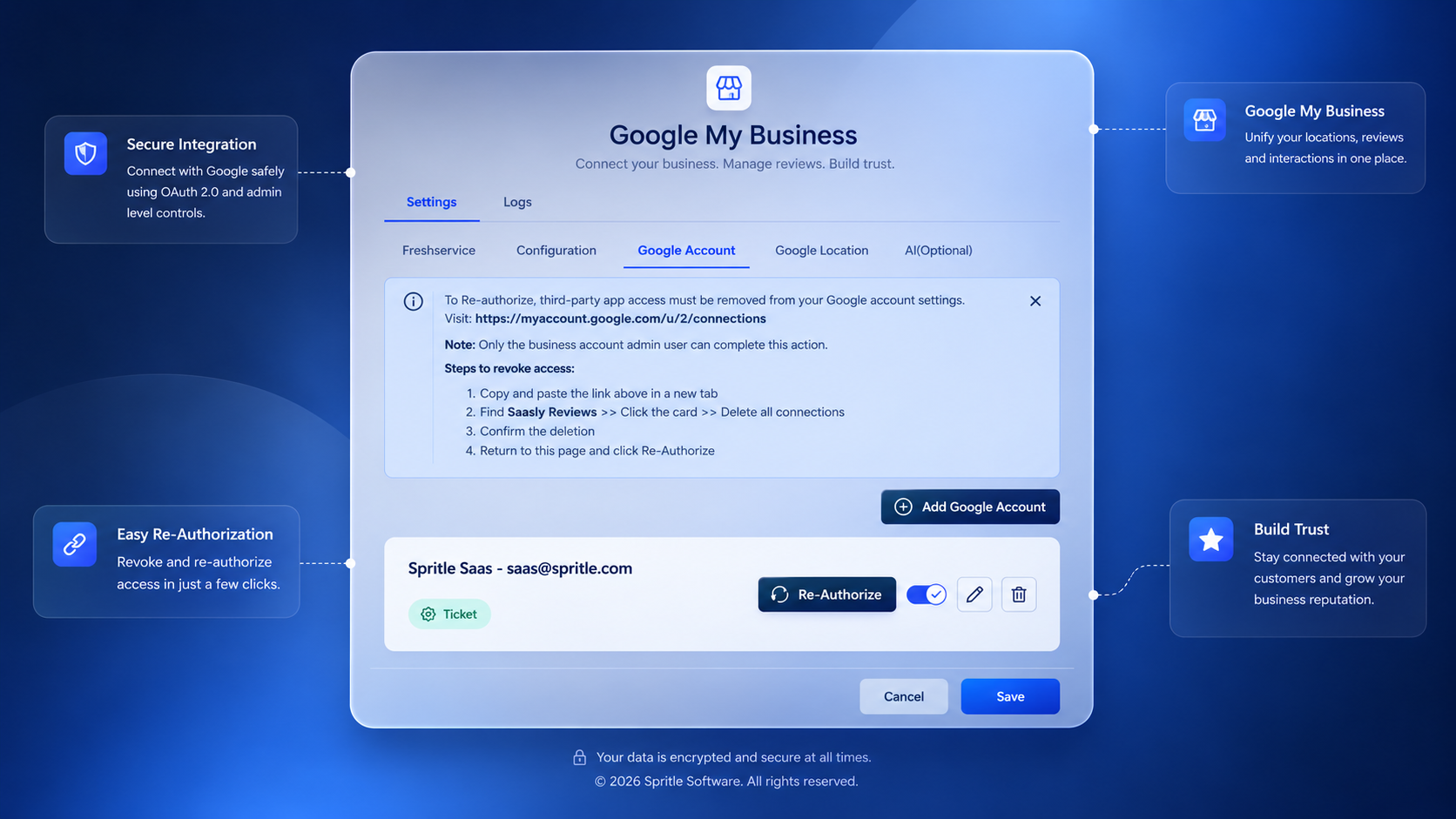
Connect Google account
Required- Go to the Google tab and click Connect Google Account.
- You'll be redirected to Google's OAuth consent screen — sign in with the Google account that owns your Business Profile(s).
- After authorisation, you'll be returned to the app. You can connect additional accounts by repeating this step.
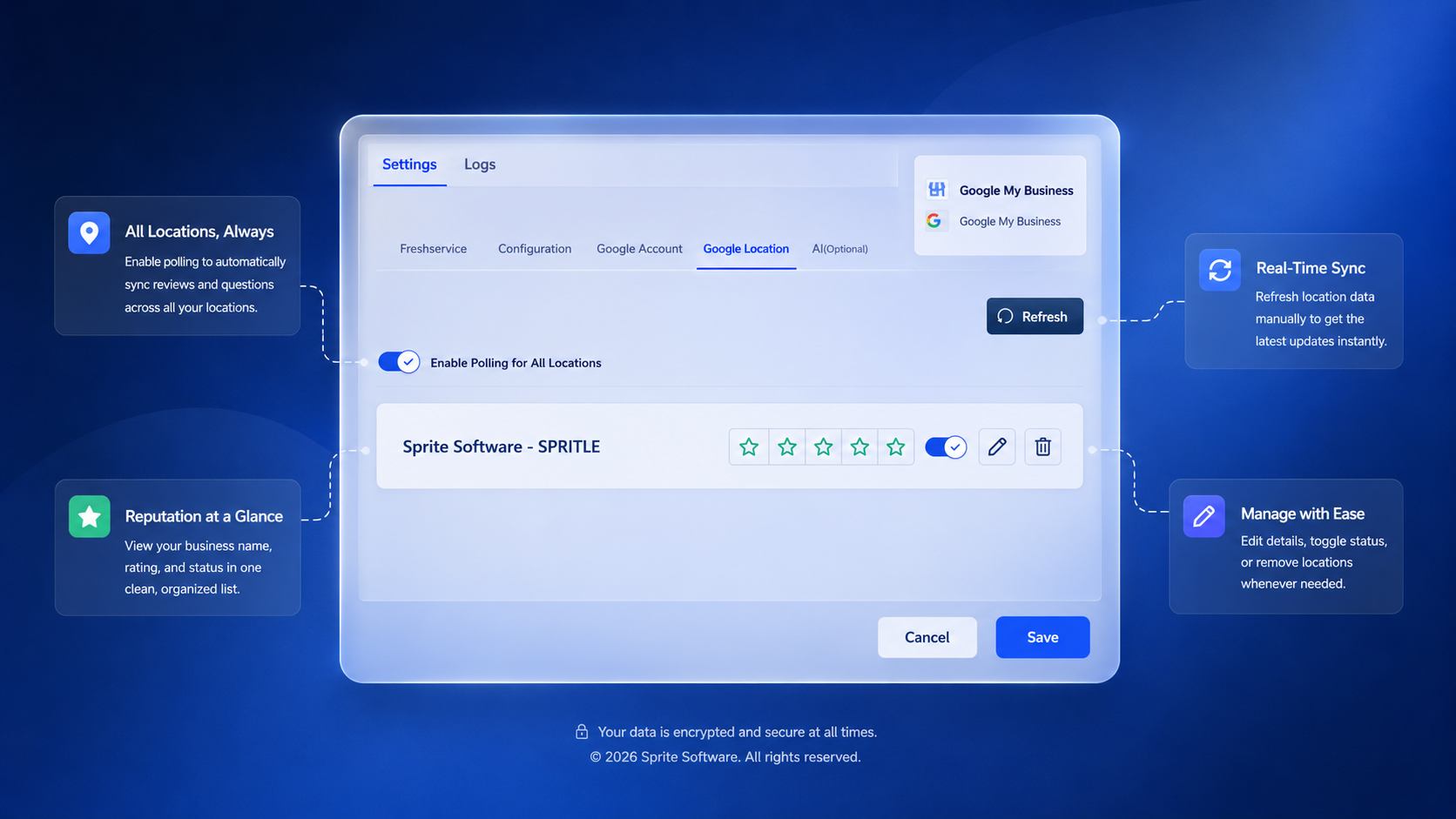
Choose locations
Required- After connecting a Google account, go to the Locations tab. The app loads all Business Profile locations attached to that account.
- Toggle on the locations you want the app to poll for reviews.
- You can enable or disable locations at any time without re-connecting the Google account.
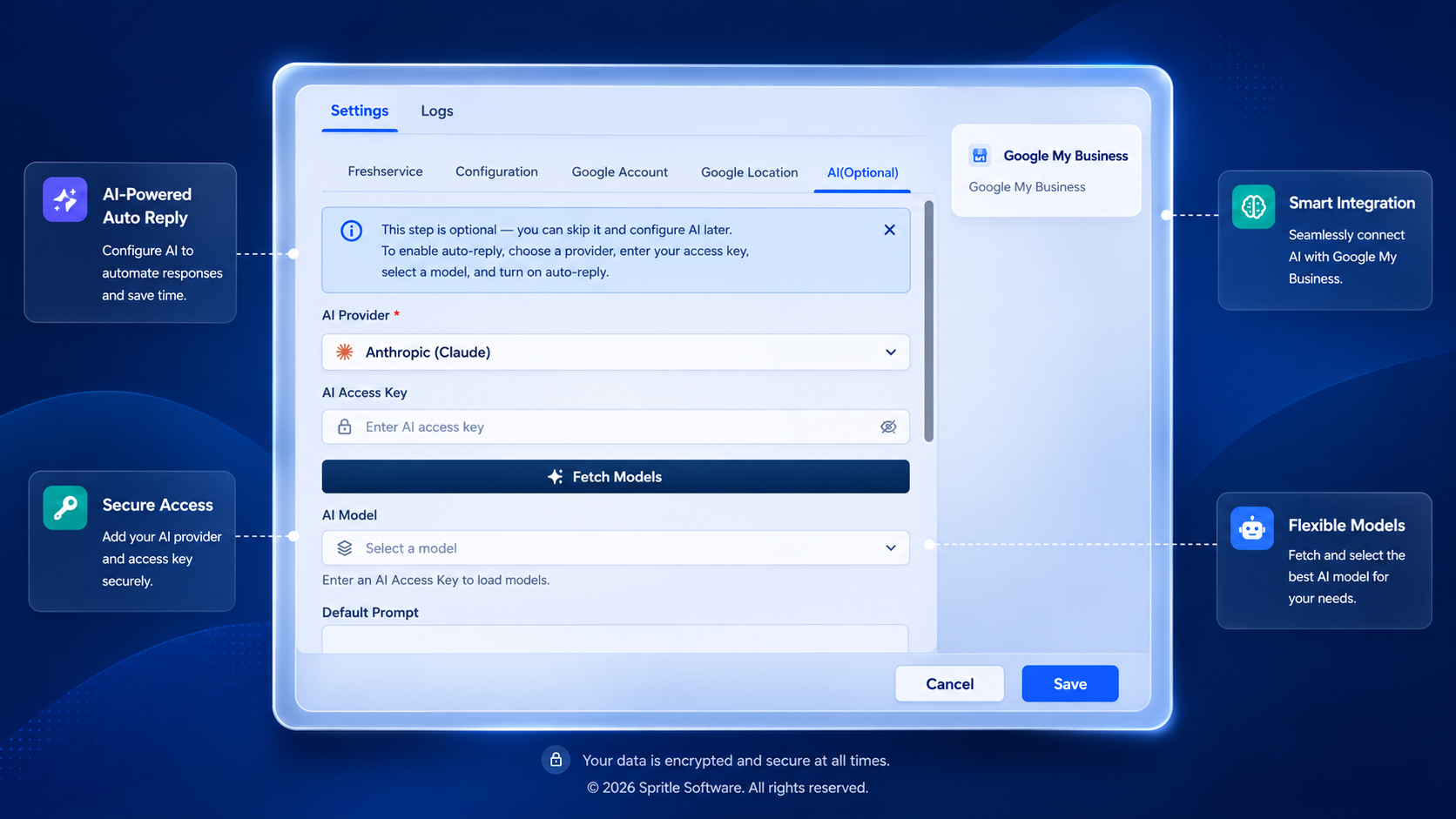
AI auto-reply
Optional- On the AI tab, choose an AI Provider (e.g. Anthropic Claude) and paste your AI Access Key.
- Click Fetch Models to load the models available to that key, then select the one you want to use.
- Save — from this point on, every new review ticket will include an AI-drafted reply as a private note for the agent to review before sending.
Confirm that your setup is working — new reviews should be arriving as Freshservice tickets within the app's polling interval.
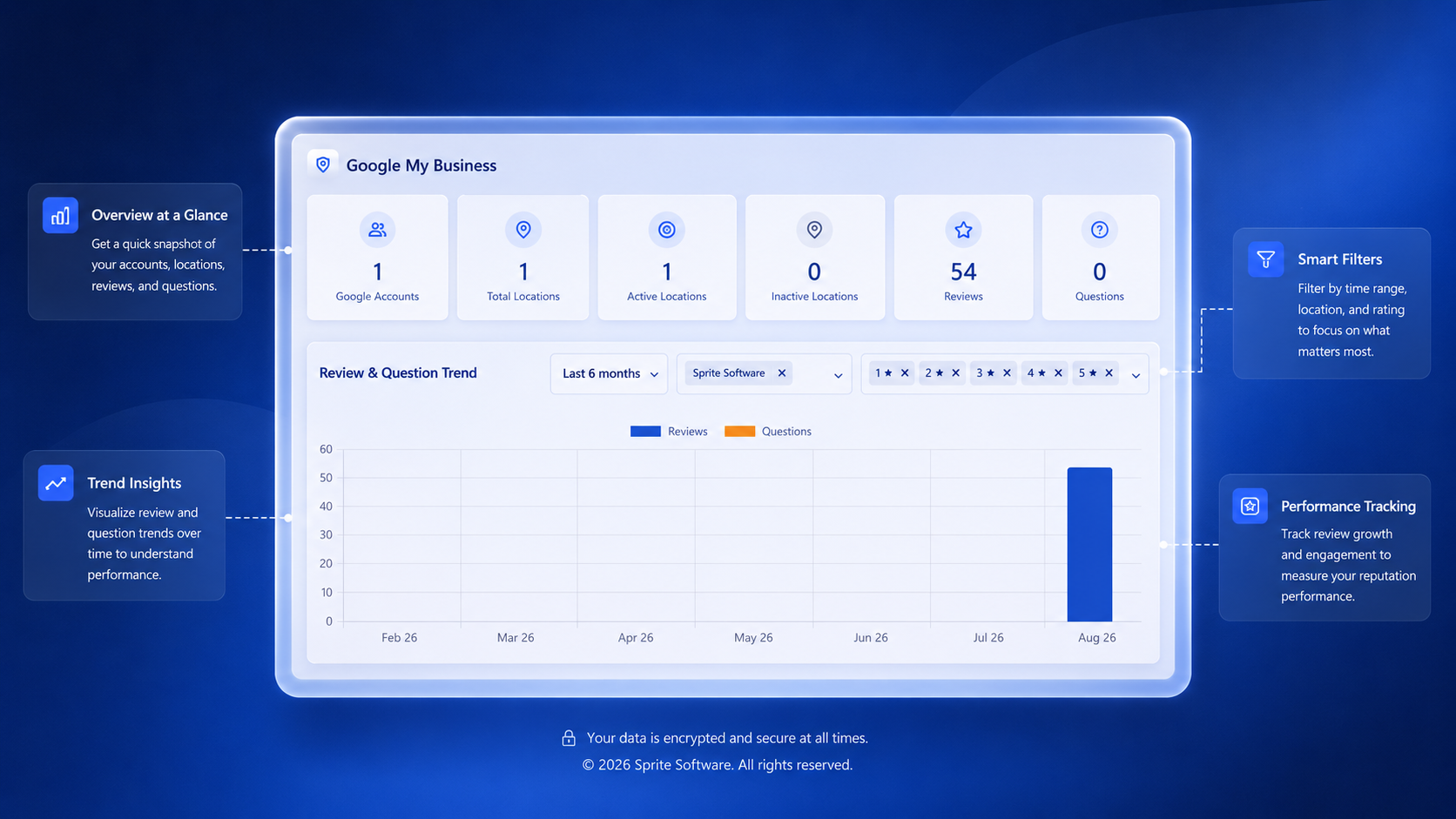
Check the dashboard
Verify- Open the app's Dashboard or Reports tab — you should see the connected accounts, active locations, and a count of reviews fetched so far.
- If any location shows 0 reviews and you know reviews exist, make sure the location is toggled on in the Locations tab and that the Google account is still connected (tokens can expire).
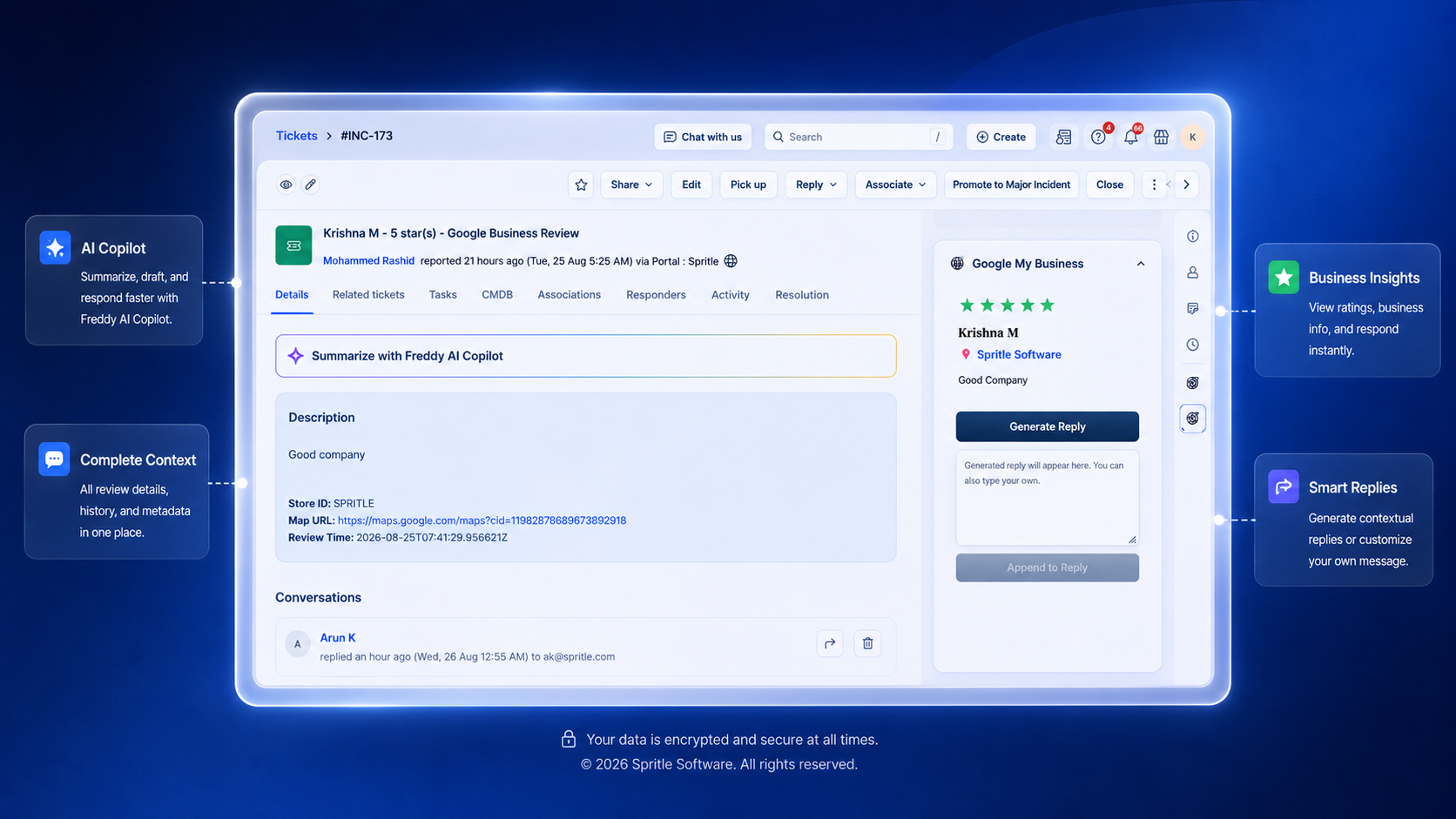
Confirm reviews became tickets
Verify- Go to your Freshservice ticket list and filter by the source or ticket group you mapped in Step 2.
- Each Google review should appear as a separate ticket. The ticket subject contains the reviewer's name, star rating, and location name.
- If tickets are missing, double-check your Freshservice domain and API key (Step 1) — an invalid key means the app can fetch reviews but can't create tickets.
Core capabilities included in every plan.
Multiple accounts & locations
Connect as many Google Business accounts as you need. Enable or disable individual locations without re-authorising.
Automatic ticket creation
New reviews become tickets immediately. Edited reviews add a private note to the original ticket so there are no duplicates.
Flexible field & mandatory mapping
Map any review field to any Freshservice ticket field. Set safe defaults for mandatory fields the review doesn't cover.
AI-drafted replies (optional)
Plug in Anthropic Claude or another supported provider to get an AI-drafted reply attached as a private note on every new ticket.
Built-in reporting
Review trends, rating breakdowns, and recent activity — all available from the app's Reports tab without leaving Freshservice.
Secure token storage
Google OAuth tokens and Freshservice API keys are encrypted at rest. Freshworks origin checks prevent unauthorised access.